


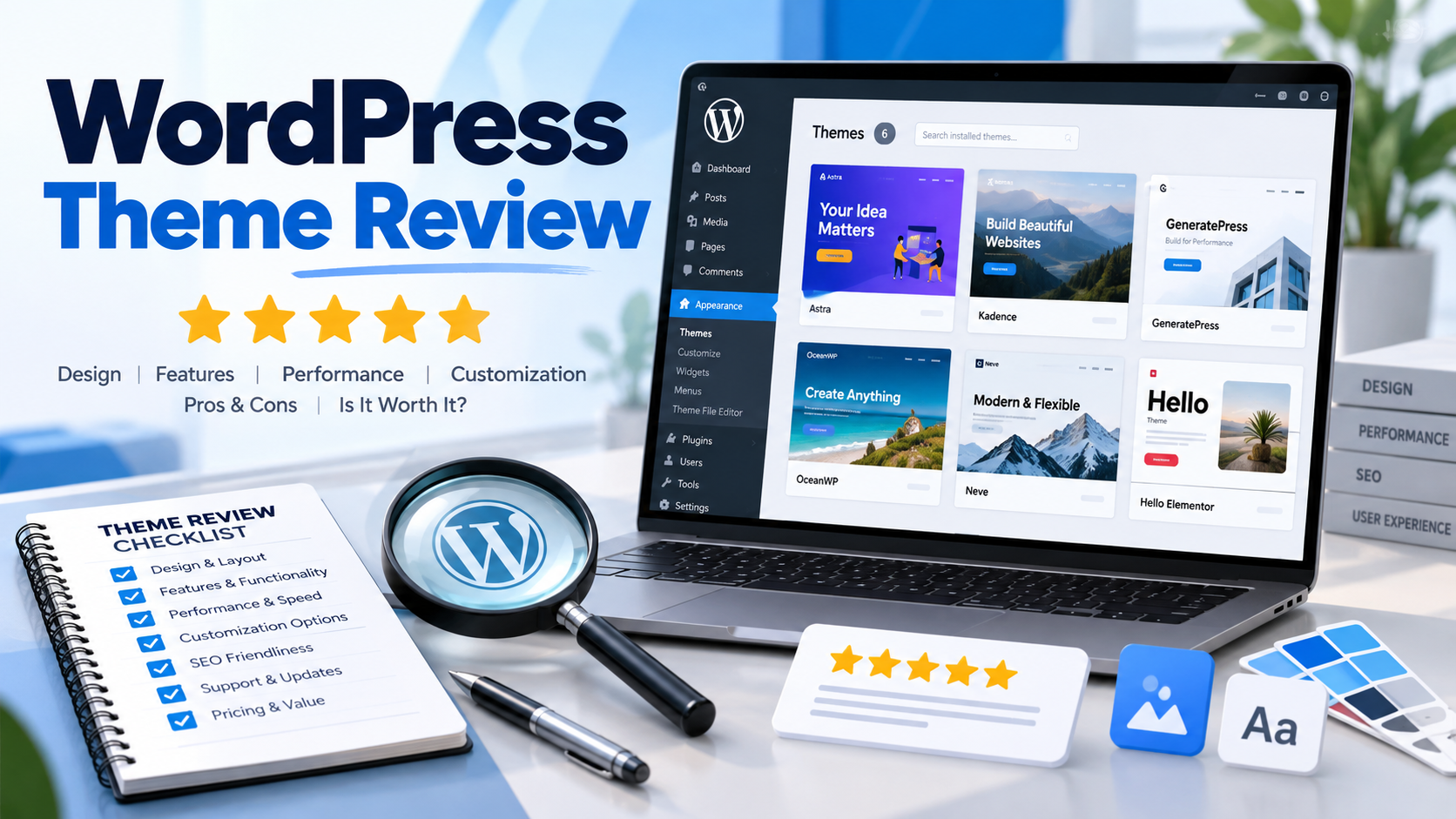
Choosing a WordPress theme for your online shop can be a little overwhelming. There are literally thousands of themes available, and most claim to be fast, flexible, and suitable for every kind of website. The real question is, does the theme work well for a real WooCommerce store?
It takes more than a nice homepage to create a good shop theme. It has to show products properly, work on mobile phones, support the cart and checkout pages, and be easy to manage once your store is live.
Woostify: A Free WooCommerce Theme for Online Stores is designed primarily for use in WooCommerce stores. This provides a simple place to start for shop owners without needing them to purchase a paid theme right away.
In this review, we'll unpack what Woostify includes, explore where that functionality shined for us, which areas felt somewhat limited to use, and how you can get it installed on a WordPress website.
What Is Woostify?
Woostify is a WooCommerce-focused theme for WordPress shops
Some themes are made for blogs, company websites, portfolios, and stores all at once. Woostify takes a narrower approach. Its main focus is selling products through WordPress.
The theme can work for different types of online businesses, including:
• Clothing shops
• Beauty and skincare stores
• Jewelry websites
• Electronics shops
• Furniture stores
• Grocery businesses
• Footwear brands
• Digital product stores
The free version is available through the WordPress theme directory. You can install it directly from the dashboard without downloading files from another website.
Woostify has paid features as well, but you don’t need those to build a basic WooCommerce store. The free version covers product pages, shop pages, menus, blog posts, cart pages, and checkout pages.
What Makes Woostify Suitable for WooCommerce?
A regular WordPress theme may support WooCommerce, but that does not always mean the shop pages look appealing.
In some themes, product images appear too small. In others, the add-to-cart button is difficult to notice. Some themes also use layouts that look fine on desktop screens but become awkward on mobile phones.
Woostify has been planned around online shopping pages. Product cards, product images, prices, sale labels, ratings, cart buttons, and checkout sections fit naturally into the design.
This makes the first setup easier, especially for someone building a WooCommerce store for the first time.
You can still change the colors, fonts, logo, menu, footer, and page layout. The theme gives you a basic shop design, and you can shape it around your brand.
Main Features of Woostify
A Theme That Does Not Feel Heavy
One of the main reasons people choose Woostify is its small and simple structure.
Some WordPress themes include many design effects, sliders, scripts, and style files. Even when you do not use those features, the website may still load parts of them.
Woostify avoids adding too much to the basic theme.
This may allow the site to load faster, but ultimately the speed will also depend on other things, such as
• Web hosting
• Image size
• Number of plugins
• Cache settings
• Page builder use
• Custom scripts
• Third-party tracking codes
A theme by itself will not speed up a slow website but can help avoid excess weight right away.
This matters for online shops because customers often visit several pages before buying. A shopper may open a category, compare two products, add one to the cart, and then go to checkout. Slow pages can make that process frustrating.
WooCommerce Pages Fit the Theme Properly
Woostify supports the main pages created by WooCommerce.
These include:
• Shop page
• Product category pages
• Individual product pages
• Cart page
• Checkout page
• My Account page
The theme displays the basic product details customers expect to see, such as product images, price, stock status, product choices, sale price, ratings, and add-to-cart buttons.
It also works with many WooCommerce extensions. You can add payment methods, shipping rules, booking options, subscriptions, product filters, or wishlists through separate plugins.
You should still avoid installing a plugin for every small feature. Too many plugins can make the store harder to maintain and may also slow it down.
Mobile Layout for Phone Shoppers
A large part of online shopping now happens on mobile phones.
For that reason, a WooCommerce theme must work well on smaller screens. Images shouldn't contort out of the page, menus should be really easy to open, and buttons should be big enough to tap.
Woostify intervenes in the mobile and tablet layout. Menus become more compact, images resize, and the shop remains easier to browse.
That said, you should always test the website on real devices before launch. A theme may work well on mobile, but a large banner, custom code, or plugin can still create display problems.
Check the homepage, shop page, product page, cart, and checkout on more than one screen size.
Changes Can Be Made Without Editing Code
Woostify gives users a range of settings through the WordPress Customizer.
You can change:
• Site logo
• Main colors
• Text fonts
• Button style
• Page width
•Header layout
• Footer layout
This feature makes the theme easier for people who do not know HTML, CSS, or PHP.
A fashion shop may want large photographs and plenty of white space. A grocery store may prefer smaller product cards so more items appear on one screen. For example, in the case of an electronics website, you may need separate categories and more detailed descriptions for the products.
Woostify gives you just enough control to make these basic tweaks.
If you want to do more advanced design work, then you will probably need a page builder or custom CSS.
It Works with Elementor
Woostify is compatible with Elementor, one of the most popular WordPress page builders.
Using Elementor, you drag sections, text, photos, buttons, and columns for WooCommerce product blocks on the screen to create pages.
You can use it for:
• Homepage design
• Sale landing pages
• Brand pages
• Product collection pages
• Seasonal offer pages
• About page
This feature is helpful when the normal WordPress editor does not give you enough layout control.
Still, it is better to keep pages simple. A page filled with animations, sliders, large videos, and moving sections may look impressive at first, but it can distract customers and increase loading time.
For an online shop, clear product information usually matters more than decorative effects.
Product Pages Stay Easy to Read
A product page must answer the shopper’s main questions quickly.
The customer wants to know:
• What is the product?
• How much does it cost?
• Is it in stock?
• What sizes or colors are available?
• How can it be ordered?
• What are the delivery details?
Woostify tidies up the product page, keeping this information on top.
You will be presented the product image, title, cost, description, options, and a buy button in somewhat a familiar order. This enhances the page's readability and makes it more familiar to customers already ordering from other WooCommerce websites.
WooCommerce Tabs can also be used for descriptions, additional information, and reviews.
Easy browsing of shop & category pages
It handles the shop page as if it were a catalogue. Customers scan the images of products, their names, and prices before selecting the ones they want to open.
Sticking to Minimalist Product Cards Woostify makes sure product cards are clean and free from the cluster of information.
You could categorize products into men and women, children, accessories, and sale -> new.
Therefore, good categories will allow the customer to do less. They can browse within a section corresponding to their requirements rather than search for every product.
Similarly, when you optimize category pages with useful headings, descriptions, and internal linking, you help the search engine better understand the store structure.
Blog Pages Are Included
An online store can also publish blog articles.
Blog content can answer questions that customers ask before buying. It can also bring people to the website through search results.
For instance, an online skincare shop can write and publish guides on dry skin, oily skin, or different ingredients found in their products. But say, for example, you are writing about a furniture store, then talking about room sizes, materials, cleaning stuff, and what not. Your clothing website may rely on sizing, what types of fabric to wear, what to wear during certain seasons, and washing advice.
Woostify includes normal WordPress blog layouts, so you can publish articles without adding another theme or separate blog system.
You can then link blog posts to related products and categories.
Woostify Works with SEO Plugins
Woostify can be used with plugins such as Rank Math, Yoast SEO, and All in One SEO.
These plugins help you manage:
• Page titles
• Meta descriptions
• XML sitemaps
• Canonical links
• Indexing controls
• Social sharing details
The theme gives you the page design, while the SEO plugin handles many of the search settings.
However, installing an SEO plugin does not guarantee rankings.
Your store also needs original product descriptions, useful category pages, sensible internal links, accurate product information, decent loading speed, and a clear website structure.
The theme supports this work, but it does not replace it.
Pros and Cons of Woostify
| Pros | Cons |
|---|---|
| Free version available | Some shop tools are only available in the paid version |
| Made mainly for WooCommerce | Free design choices may feel limited |
| Simple theme structure | Advanced changes may require custom code |
| Works on mobile phones and tablets | Some users may need Elementor for custom pages |
| Easy to install from WordPress | Extra add-ons can increase the total cost |
| Works with popular plugins | Beginners still need time to learn WooCommerce |
| Suitable for many types of shops | Fewer free starter designs than some other themes |
Woostify Theme Stats and Verdict
Woostify is listed in the official WordPress theme directory. This means users can install it directly from the dashboard and receive updates through WordPress.
Many WooCommerce website owners apply the theme, particularly those who wish to have a free theme that does not have built-in extras.
Importantly, it is also updated, as WordPress and WooCommerce are regularly updated. If a theme is not maintained, it can cause layout issues, plugin conflicts, or security problems over time.
The free version is best suited to:
• New online stores
• Small businesses
• Test websites
• Personal projects
• Dropshipping stores
• Shops with a limited starting budget
The paid version may be useful when a store needs more control over product layouts, cart features, search, product filters, or sales sections.
Our Verdict
Woostify is a sensible choice for someone who wants to start a WooCommerce store without paying for a theme on day one.
It covers the main shop pages, works on mobile devices, and gives users enough settings to create a clean website.
The free version may not offer every feature a larger store needs, but it is suitable for a straightforward shop.
Start with the free version, build the store, and only pay for extra features when you actually need them.
Step-by-Step Installation of Woostify
Step 1: Go to Your WordPress Dashboard
To start with, log in to your website as Administrator.
Step 2: Go to the Themes Page.
From the left menu, go to Appearance and click on Themes.
Step 3: Add a New Theme
Click Add New from the top of the page.
Step 4: Search for Woostify
Now, enter Woostify in the search box of themes. Verify theme names and preview pictures prior to installing.
Step 5: Install the Theme
Then click Install, and give WordPress permission to download the theme.
Step 6: Activate Woostify
On completion of the installation, click on Activate. The theme will now be applied to your website.
Step 7: Install WooCommerce
In your dashboard, click on Plugins → Add New → and search for WooCommerce. Install and activate the plugin.
Step 8: Finalize the Store Setup
WooCommerce will learn your business address, the currency you would be using for sales, payment methods, shipping information, and product type as part of the getting started wizard. Follow the steps that apply to your shop.
Step 9: Update the Theme Seven Change Design
Navigate to Appearance and open your theme settings. Upload your company logo, pick the colors you like, and define the fonts to apply; these changes will affect how the privacy banners look in the header and footer.
Step 10: Add Products
Navigate to Products and choose Add New Put in the name of the product, images, price, description, stock availability category & shipping information.
Step 11: Test the Store
Add a Test Order Before Opening the Webshop to Customers Look over the product, cart, checkout, payment method, order email, and mobile layout.
Frequently Asked Questions
Is Woostify free?
Yes, a free version is available in the WordPress theme directory.
Is Woostify made for WooCommerce?
Yes, Woostify is designed mainly for WooCommerce stores.
Does Woostify work with Elementor?
Yes, with the help of Elementor, you can create pages that are tailored to your needs using Woostify.
Is Woostify good for newbies?
Yes, you can install from the WordPress dashboard and then manage.
Can I upgrade Woostify later?
Yes, you can start with the free theme first and pay for features thereafter.